
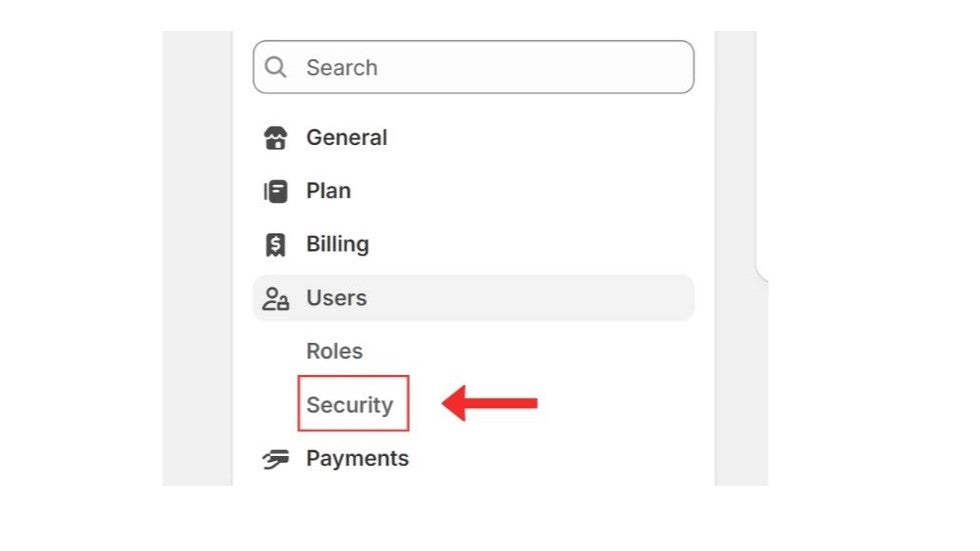
The Shopify collaborator request code is the 4-digit code a Shopify Partner (an agency, developer or freelancer) needs to send a request for access to your store. You'll find it in your Shopify admin under Settings → Users → Security. You share the code only with the partner you're going to work with; they send the request, and you decide which permissions to grant before approving it.
In this article we explain where the code is, how to renew it, how to review an incoming request and how to remove access when the work is done.
What is a collaborator account, and how is it different from a staff account?
Collaborator accounts let agencies and developers in the Shopify Partner Program access your store with their own partner accounts. You don't need to create a separate user for your store, and these accounts don't count towards your plan's user limit.
There are a few important differences:
A collaborator must have two-step authentication turned on in their own account to log in to your store.
Collaborators can't be given the Administrator role, and store ownership can't be transferred to them.
They can't access the Shopify POS app or the Point of Sale channel.
If a collaborator doesn't log in to your store for 90 days, their access expires automatically. You can reactivate them from the user's page if needed.
A sensible split is to use staff accounts for permanent team members and collaborator accounts for outside technical or marketing support.
Where do you find the Shopify collaborator request code?
The code is now mandatory. Shopify requires partners to enter it when sending a request, so someone who doesn't know the code can't request access to your store.
In your Shopify admin, open Settings → Users.
If your store is part of an organisation, go to Users; if not, go to Users & permissions.
Click the Security tab.
Click the 4-digit code in the Collaborators section to copy it.
Share the code only with the partner you're going to work with.
How do you renew the code?
If you've shared the code with several people before, or you're not sure who has it, generating a new one is the simplest precaution. As soon as a new code is created, the old one stops working.
Open Settings → Users → Security.
In the Collaborators section, click Generate new code.
Share the new code only with the partner you're currently working with.
Renewing the code when you start working with an agency and sending it only to that agency is a good habit. That way no requests come in using codes left over from old projects.
How does a partner send an access request?
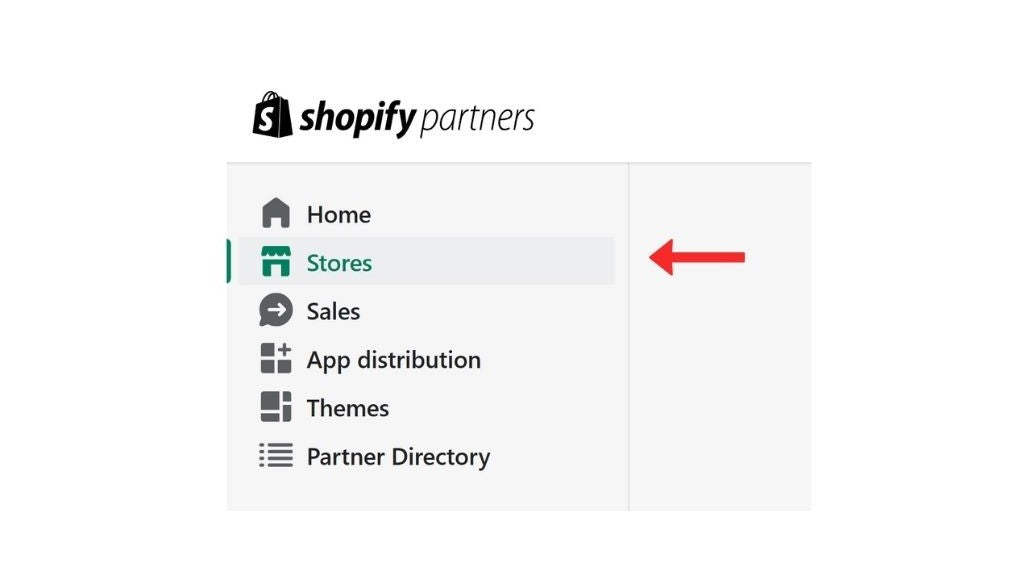
On the partner's side, the process runs through the Shopify Dev Dashboard:
The partner creates a store access request from the Stores page in their Dev Dashboard.
They enter your store's address and the 4-digit code you gave them.
They choose the permissions they need for the work (such as products, orders, themes or apps).
They can add a short note to the request and send it.
The request reaches you by email and as a notification on your Shopify admin home page.
How do you review and approve a request?
You can see requests on the Settings → Users page by choosing Requests in the status filter.
For each request, Shopify creates an automatic role based on the permissions the partner asked for. Before approving, you can review this role and narrow its permissions, rename it, or assign a role that already exists in your store.
The request screen may also show some details about the partner: how long their partner account has existed, which country it was created in and which country the request was sent from. If the request was sent through a VPN, that's flagged too. None of this means there's a problem on its own, but if you see something you don't expect, ask the partner before approving.
Before approving, check:
Do you know the partner who sent the request, and were you expecting it?
Do the requested permissions match the work to be done? A request for theme changes doesn't need payment or customer data permissions.
Have you limited app and sales channel access to only what's needed?
If everything looks right, click Accept request; if not, click Reject request. If you reject a request by mistake, the partner needs to contact Shopify Partner Support.
How do you remove access when the work is done?
Removing the collaborator account when a project is finished is the last step for keeping your store secure.
Go to Settings → Users.
Click the name of the collaborator you want to remove.
If your store is part of an organisation, use Actions → Remove; if not, use the removal option in the Remove collaborator account section.
Click Remove in the confirmation dialog.
Removal can't be undone. If you need to work with the same partner again, they'll have to send a new request. The actions the partner took in your store remain visible in activity logs and order timelines.
You can use the User type → Collaborators filter in your user list to see all the collaborator accounts on your store at once. We recommend checking this every few months and removing accounts you no longer work with.
Frequently asked questions
How many digits is the collaborator request code?
It's 4 digits and appears on the Settings → Users → Security page.
Do collaborator accounts count towards my user limit?
No. Collaborator accounts don't count towards the number of users your plan allows.
Does a collaborator's access close on its own?
If a collaborator doesn't log in to your store for 90 days, their access expires automatically. Still, removing the account manually when the work is done is safer.
Which permissions should a partner ask for?
Only the ones needed for the work they're doing. If a permission seems unnecessary to you, don't hesitate to ask the partner why they need it.
Working with Byte
When we start a new project, we ask clients only for their collaborator request code and send a request with just the permissions the work requires. If you need technical support or development for your store, get in touch through our Shopify technical support page. If you're opening a new store, take a look at our Shopify store setup service.