Google Search Console is a free Google tool that shows your site's visibility in Google Search, which searches it appears for, and any crawling and indexing issues. Setup has three steps: adding a property to Search Console, verifying that the site belongs to you and submitting your sitemap. For Shopify stores, the most robust method is to verify a domain property with a DNS record.
In this article we walk through Search Console setup step by step for Shopify stores and summarise the reports to look at first after setup.
Domain property or URL prefix property?
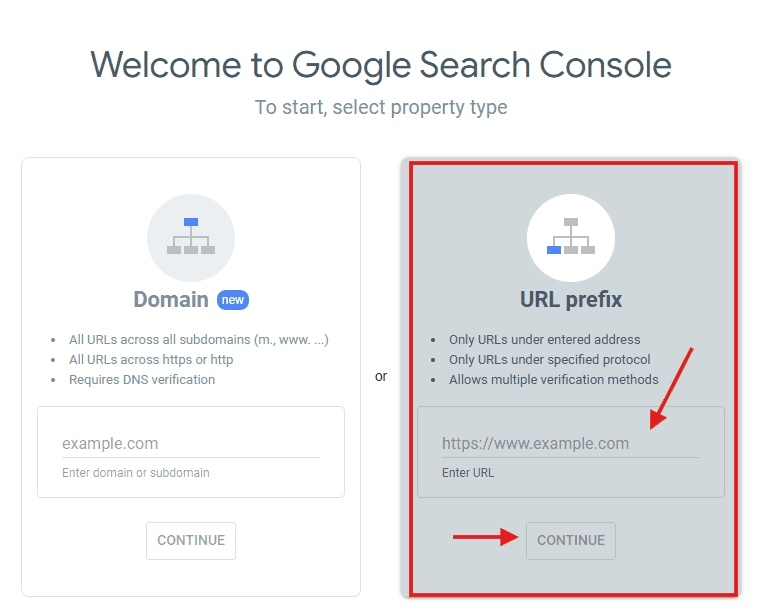
When adding a site to Search Console, you choose one of two property types:
Property type | What it covers | How it's verified |
|---|---|---|
Domain | All subdomains (www, m, blog) and both http and https versions of the domain | DNS record only |
URL prefix | Only pages starting with the address you enter (e.g. https://www.yourbrand.com) | HTML tag, HTML file, Google Analytics, Google Tag Manager or DNS |
A domain property is the recommended option because it shows your whole site in one place. A URL prefix property is useful if you don't have access to your DNS settings or only want to track a specific section. You can also use both types at the same time.
Step 1: Add a property to Search Console
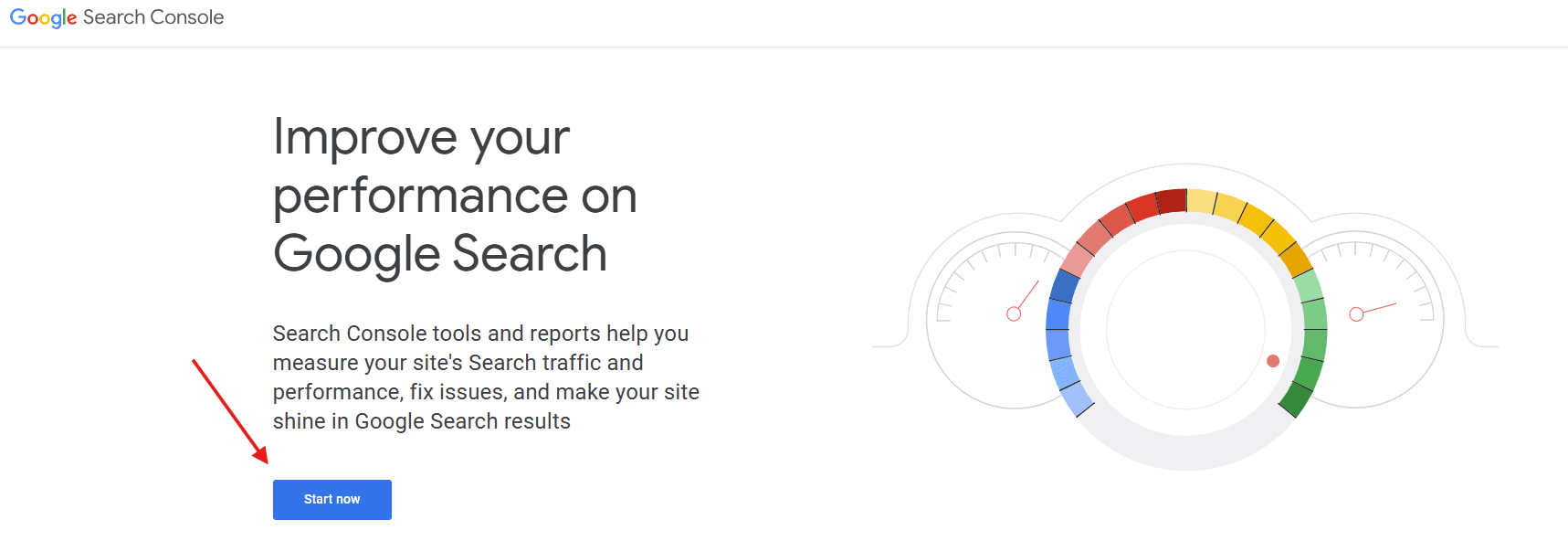
Go to Google Search Console and sign in with your Google account. Where possible, use a company-owned Google account so access isn't lost if your team changes.
Click Add property in the property selector at the top left.
In the Domain box, enter your domain without http, https or www (e.g. yourbrand.com). If you're using a URL prefix, enter the full address.
Step 2: Verify your site
Domain property: verifying with a DNS TXT record
Google gives you a TXT record starting with google-site-verification=. You need to add this record to your domain's DNS settings:
If you bought your domain through Shopify: in your Shopify admin, go to Settings → Domains, select the domain, open its DNS settings and add a new TXT record. Enter @ in the name field and paste the code Google gave you into the value field.
If you bought your domain elsewhere: create a new TXT record in the same way in your domain provider's DNS management panel.
After adding the record, return to Search Console and click Verify. DNS changes can take anywhere from a few minutes to a few hours to propagate; if verification fails on the first try, try again a little later.
URL prefix property: verifying with an HTML tag
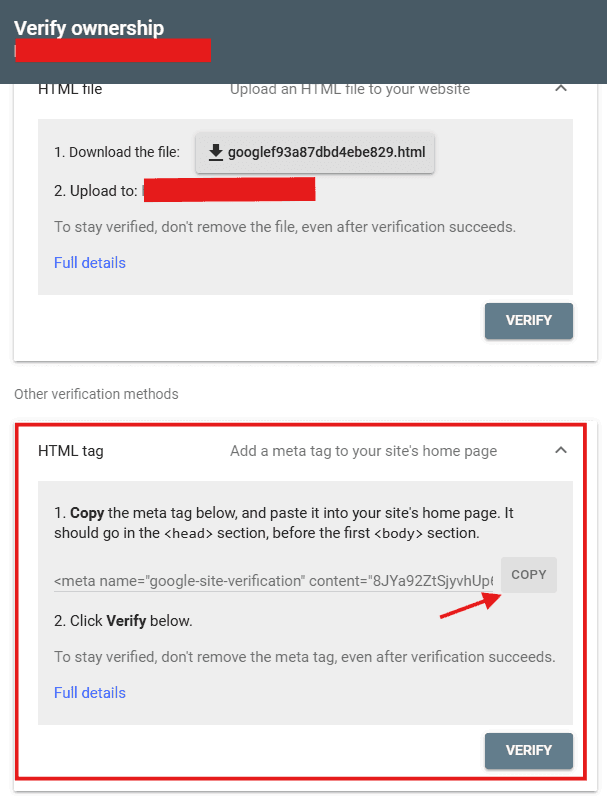
Choose HTML tag from the verification methods and copy the meta tag provided.
In your Shopify admin, go to Online Store → Themes and open Edit code on your live theme.
In the theme.liquid file, paste the meta tag just above the </head> tag and save.
Return to Search Console and click Verify.
This method has a drawback: when you change or publish a new theme, the tag is lost and verification fails. That's why we recommend DNS verification for Shopify stores.
If Google Analytics or Google Tag Manager is already set up with the same Google account, you can also verify with those methods.
Step 3: Submit your sitemap
Shopify automatically creates and updates a sitemap for every store. Your sitemap is at yourdomain.com/sitemap.xml. This main file links to separate sitemaps for products, collections, pages and blog posts.
In Search Console, open Sitemaps from the left menu.
In Add a new sitemap, enter sitemap.xml and click Submit.
If you publish in more than one language or market, Shopify also creates separate sitemaps for each language. To make sure these are set up correctly, check your hreflang setup; we explain the details in our hreflang guide.
Step 4: Give team members access
You can give your agency or teammates access from Settings → Users and permissions. Full permission can change settings, while restricted permission can only view reports. Rather than tying ownership to one person's personal account, defining at least two owners is a good habit.
Reports to look at first after setup
Performance: shows which searches your site appears for, along with clicks, impressions, click-through rate and average position. Data usually starts to appear within a few days.
Page indexing: lists which pages are indexed and why others aren't. On Shopify stores, it's normal for filter and sort parameter URLs to show as "crawled but not indexed".
Core Web Vitals: shows the status of speed and user experience metrics on mobile and desktop. For improvements, see our Core Web Vitals guide.
Shopping and enhancements: shows whether there are errors in your product structured data and how your products appear in shopping results.
We cover the AI-powered features recently added to Search Console in our article on AI support in Search Console.
Common verification problems
TXT record not found: the DNS change may not have propagated yet. Wait a few hours and try again. Make sure the record name is @ and the value was copied in full.
Meta tag not found: make sure the tag was added to the live theme and appears before the </head> tag. If your store is password-protected, Google can't access the page; you may need to remove the password temporarily for verification.
Verification dropped later: a theme change may have removed the HTML tag. Switching to DNS verification fixes this permanently.
Frequently asked questions
Is Google Search Console paid?
No. Search Console is completely free.
Which verification method is better for a Shopify store?
Domain property verification with a DNS TXT record. It isn't affected by theme changes and brings all versions of the site together in one property.
What's the difference between Search Console and Google Analytics?
Search Console shows your site's visibility and technical health in Google Search: which searches you appear for, your click-through rate and indexing issues. Google Analytics measures what visitors do after they reach your site. The two complement each other and can be linked.
Let's check your SEO setup together
Search Console is the core tool for monitoring your site's health on Google, but the real value lies in prioritising the issues in its reports correctly. If you'd like to review your store's SEO and GEO together, get in touch through our SEO and GEO consulting page.