
To cancel your Shopify subscription, go to Settings → Plan in your Shopify admin and click Cancel plan. The cancellation takes effect at the end of your current billing cycle; on that date your store is deactivated and all apps are uninstalled. Shopify keeps your store information for 2 years, and you can reopen the store during that time.
In this article we cover what to do before cancelling, the step-by-step cancellation process and the options you might consider before cancelling. The information is based on Shopify Help Center pages as of November 2026.
First, know this: the Pause and Build plan no longer exists
Older guides describe the Pause and Build plan as a way to "freeze" your store for a small monthly fee. Shopify has classed this as a legacy plan and no longer offers it to new stores. Stores already on the plan can choose a new plan, but they can't switch back to Pause and Build afterwards.
If you want to take a break from selling, the approach Shopify recommends today is to deactivate your store and reopen it when you're ready. Because your store information is kept for 2 years, you don't have to rebuild the store when you reopen it.
What to do before cancelling
1. Back up your store data
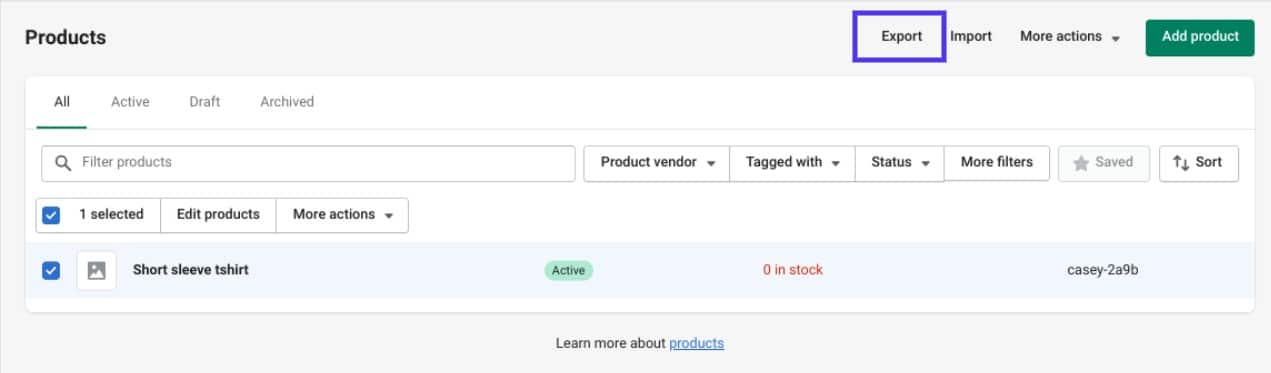
After cancellation, you lose access to your admin. Export your product, customer and order data as CSV files beforehand. For products, use the Export option on the Products page:
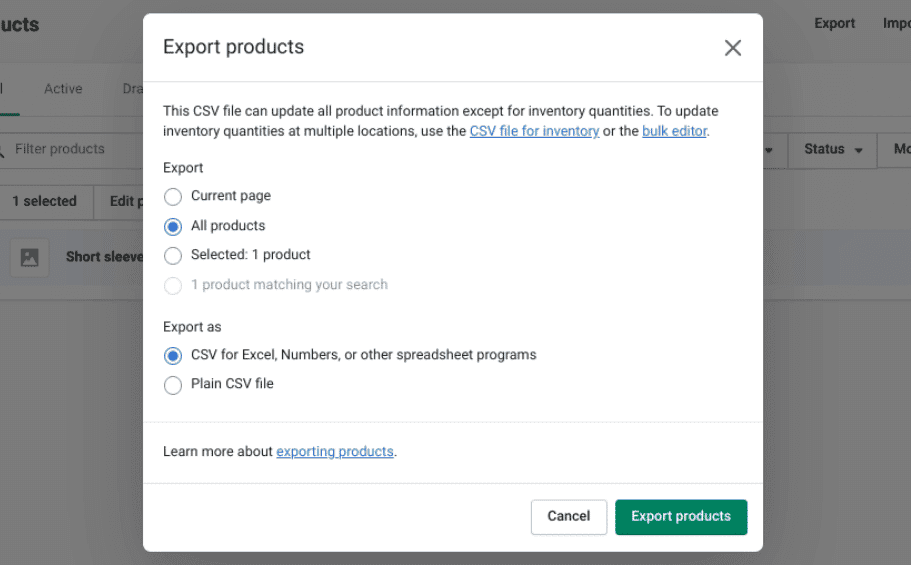
In the window that opens, choose all products and a file format, then export. The file is sent to the email address associated with your account:
Repeat the same process for customers and orders. If you sell gift cards, export your gift card list too; you'll need it to resolve any unused cards.
2. Back up your theme
If you use a theme you bought, download a copy of it. Theme licences are valid only for the store they were bought for. To move a licence to another Shopify store you own, you need to contact Shopify Support.
3. Sort out your domain
When your store is deactivated, your custom domains are disconnected from it. What you need to do depends on where you bought the domain:
If you bought it through Shopify: transfer the domain to another registrar. Check automatic renewal before cancelling; if the domain renews before your store closes, you may be charged.
If you bought it elsewhere: remove the domain from Shopify and point its DNS records to your new platform. Check automatic renewal with your registrar as well.
Shopify's HSTS security policy stays in effect on your domain for 90 days after your store closes. If you move the domain to a platform that doesn't use HTTPS, visitors will see a certificate warning in their browser during that period.
4. Close out open orders and payments
Fulfil or refund unshipped orders. If you sell pre-orders or subscription products, resolve those too.
All pending charges are collected at cancellation: app usage charges, transaction fees and shipping label charges.
Chargebacks can still arrive after your store closes. To respond to them, you'll need to reopen the store.
5. Check apps billed outside Shopify
All apps billed through Shopify are uninstalled automatically when you cancel. But apps and services you pay for separately on their own websites (such as email marketing or integration tools) are billed independently of Shopify. You need to cancel those subscriptions separately.
How to cancel your Shopify subscription step by step
Only the store owner can cancel. For security reasons, Shopify Support can't close your store for you.
In your Shopify admin, open Settings → Plan.
If you're in a free trial, click Cancel trial; if you're on a paid plan, click Cancel plan.
Shopify may show you options to move to a lower plan or start a new store. If you still want to cancel, continue.
Review your domains and pending charges. Select Cancel my plan and uninstall all apps and click Continue.
Choose a reason for cancelling, add a short comment if you like, and click Continue.
If you wish, select the option to save your payment details so you can reopen the store faster.
Enter your password and click Cancel plan (or Cancel trial) again.
You'll receive a confirmation email when it's done. If you change your mind before the billing cycle ends, you can undo the cancellation with the Reactivate plan option on the same page.
If two-step authentication is on for your account, you'll be asked for a code during cancellation too. If you can't access your phone or authenticator app, use your backup authentication method or recovery codes first.
Shopify Plus stores
Shopify Plus stores can't be cancelled from the admin. To end a Plus agreement, you need to contact your Customer Success Manager or Shopify Plus Support. When your renewal date approaches and your store is eligible, options to renew or downgrade your Plus plan also appear in the admin.
What happens after you cancel?
No refunds. Under Shopify's terms of service, subscription fees aren't refunded; you can use your store until the end of your current billing cycle.
Your data is kept for 2 years. During that time you can reopen the store by choosing a new plan. If you prefer, you can request that your customers' personal data be deleted before then; once the data is deleted, the store can't be reopened.
Your myshopify.com address stays unique to you. If you open a new store, you can use the same name, but not the same myshopify.com address.
Customers can still see their order status. Thank you and order status pages keep working after your store closes.
Options to consider before cancelling
If cost is your reason for closing, or you want a short break, look at these before cancelling:
Moving to a lower plan. If your sales volume has dropped, a cheaper plan lowers costs while keeping your store open.
Closing the store with a password. If you want to close the store to visitors and keep working behind the scenes, you can turn on the password page. Your plan fee continues in this case.
Deactivating and reopening later. If you're taking a long break, you can close the store and reopen it where you left off within 2 years. You'll need to reconnect your domains.
Frequently asked questions
Will I get a refund if I cancel Shopify?
No. Shopify doesn't refund subscription fees. Cancellation takes effect at the end of your current billing cycle, and you can use your store until then.
Can I still switch to the Pause and Build plan?
No. Pause and Build is now a legacy plan and isn't offered to new stores. To take a break from selling, you can deactivate your store and reopen it later.
Can I reopen a store I've cancelled?
Yes. Your store information is kept for 2 years. During that time you can log in as the store owner and reopen your store by choosing a new plan.
Do I need to delete apps one by one?
No. When you cancel your plan, all apps billed through Shopify are uninstalled automatically. You need to cancel services billed outside Shopify separately.
If you're moving or restructuring your store
Behind a decision to cancel there may be cost, performance or technical problems. If you'd like to fix an issue in your store or review your setup, get in touch through our Shopify technical support page. If you decide to reopen your store, our Shopify store launch checklist will make it easier.


